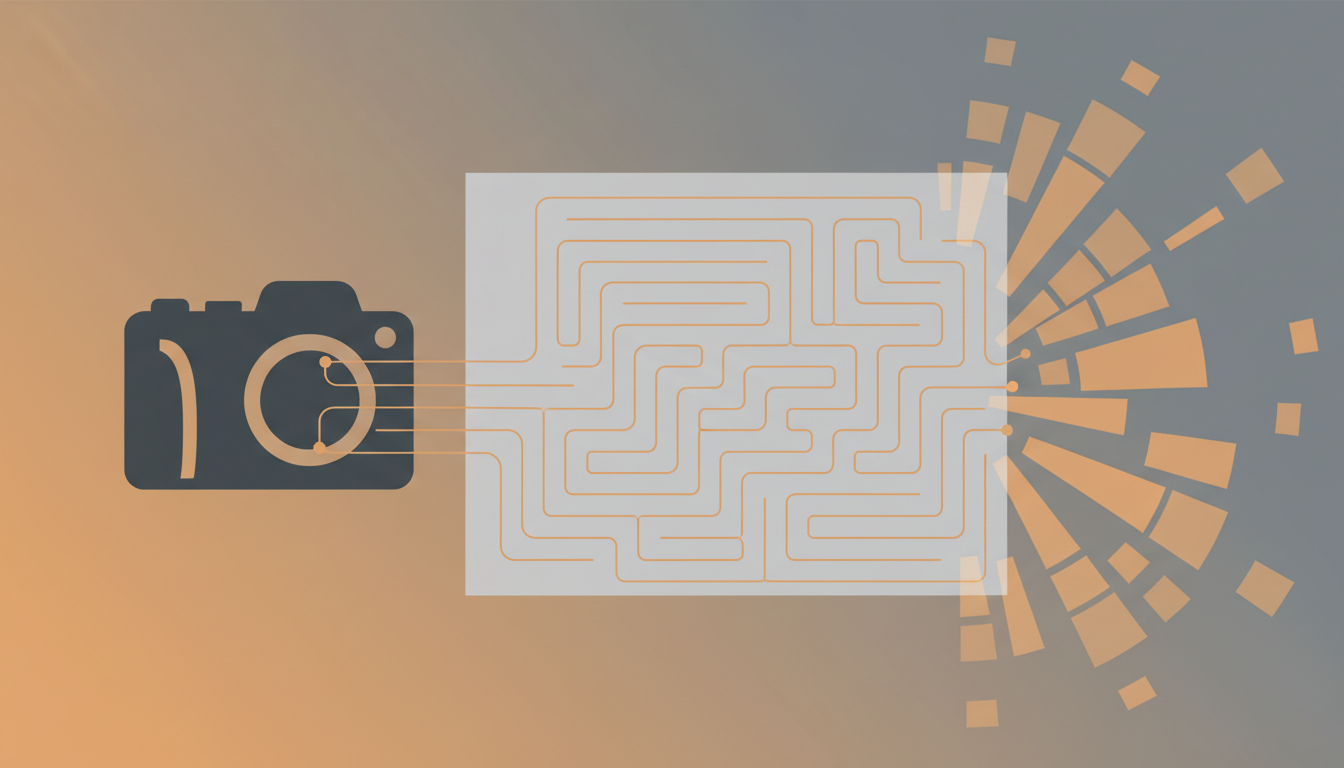
How to Turn a Photo into a Maze: Complete Beginner's Guide (2025)
Step-by-step tutorial on converting any picture into a playable maze. Perfect for teachers, parents, and party planners. Works with family photos, logos, and more.
Why Turn Photos into Mazes?
Picture mazes are incredibly engaging because they combine visual recognition with problem-solving. A maze featuring your child's favorite cartoon character, your school logo, or grandma's face is far more motivating than a generic grid.
What You'll Need
- A digital photo (JPEG, PNG, or HEIC format)
- A maze generator that supports image uploads (we recommend MazeDIY)
- 5 minutes of your time
Step 1: Choose the Right Photo
Best Photo Types:
- High Contrast: Photos with clear subject-background separation work best.
- Close-ups: Portraits or objects that fill the frame.
- Avoid: Busy backgrounds, low-resolution images, or overly dark photos.
Pro Tip: If your photo has a cluttered background, use the "Smart Cutout" feature to automatically remove it.
Step 2: Upload Your Photo
Go to MazeDIY.com/create and click "Upload Photo." The tool accepts files up to 10MB.
Within seconds, the AI will process your image and present options:
- Full Image Mode: The maze covers the entire photo.
- Smart Cutout Mode: The maze wraps around the main subject only (recommended for portraits).
Step 3: Adjust Difficulty
Use the difficulty slider to control maze complexity:
- Easy (Ages 3-5): Wide paths, fewer junctions.
- Medium (Ages 6-10): Balanced challenge.
- Hard (Ages 11+): Narrow paths, many dead ends.
- Expert (Adults): Maximum complexity for puzzle enthusiasts.
Step 4: Customize the Look
Make your maze unique with these options:
- Wall Color: Match your theme (e.g., blue for an ocean maze).
- Path Transparency: Control how much of the photo shows through.
- Decorations: Add stickers (stars, animals, emojis) at the start/end points.
Step 5: Download and Print
Click "Export" and choose your format:
- PDF (Recommended): Best for printing on standard 8.5x11" or A4 paper.
- PNG: For digital use or importing into design software.
- SVG: Vector format for poster-sized printing.
Print Settings: Use "Fit to Page" and "High Quality" for best results. Cardstock is sturdier than regular paper if you plan to reuse the maze.
Real-World Use Cases
Teachers: Turn historical figures into mazes for a fun review activity.
Parents: Create a maze of your child's face for a rainy day activity.
Event Planners: Use the couple's photo for wedding reception activity sheets.
Businesses: Turn your logo into a maze for trade show giveaways.
Troubleshooting Common Issues
Problem: The maze is too hard to see on my photo.
Solution: Increase the "Wall Thickness" or choose a darker wall color.
Problem: The background is distracting.
Solution: Use "Smart Cutout" mode to isolate the subject.
Problem: The maze is too easy/hard.
Solution: Adjust the difficulty slider and regenerate.
Advanced Tips
- For classroom sets, generate mazes with different difficulty levels from the same photo.
- Laminate mazes to make them reusable with dry-erase markers.
- Create a series of mazes that tell a story (e.g., "Help the knight reach each castle").
Conclusion
Turning photos into mazes is easier than you think, and the results are incredibly engaging. Whether you're a teacher, parent, or just someone who loves puzzles, this technique opens up endless creative possibilities.
Ready to try it? Create your first picture maze now!
Related Topics
Ready to try it yourself?
Create your own custom maze in seconds with our free generator.
Create Maze Now